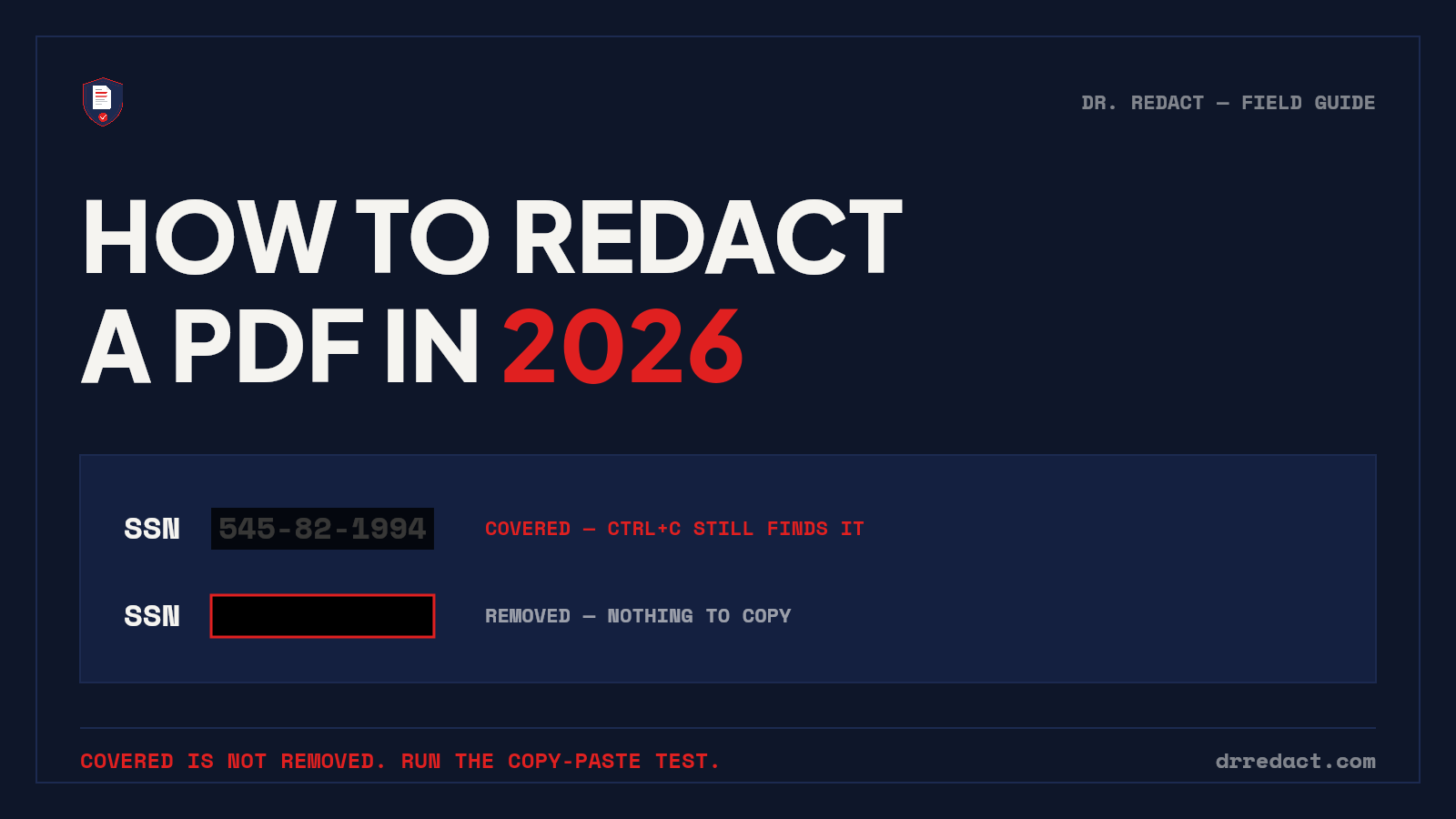
Most "redacted" PDFs aren't redacted. They're decorated.
Someone draws a black rectangle over a Social Security number, saves the file, and sends it off — and the number is still there, sitting in the text layer under the rectangle, one select-all-and-copy away from anyone who receives it. This exact mistake has surfaced in federal court filings, corporate disclosures, and government document releases, and it keeps happening because the file looks right.
This guide covers the four ways people actually redact PDFs in 2026, what each one costs, where each one fails, and — most importantly — how to verify that any redaction actually worked before the file leaves your hands.
What redaction actually means
Real redaction removes content from the file. Not hides it, not covers it — removes it, so the data no longer exists anywhere in the document: not in the visible page, not in the text layer, not in the metadata, not in an embedded thumbnail.
That's the test every method below gets measured against. A black box you can copy-paste under isn't redaction. Neither is white text on a white background, a "highlight" set to black, or cropping that hides content without deleting it — PDF crop boxes famously keep the cropped content in the file.
The 30-second test that catches most failures
Before we get to methods, here's the check that would have prevented most redaction disasters in history:
- Open the redacted PDF.
- Press Ctrl+A (select all), then Ctrl+C (copy).
- Paste into a plain text editor — Notepad is perfect.
- Search the pasted text for what you redacted: the name, the SSN, the account number.
If the sensitive text shows up, your redaction is a decoration. Also run Ctrl+F inside the PDF and search for the redacted terms directly — if the viewer finds and highlights a black box, the text is still under it.
Do this on every redacted document you send, no matter which tool produced it. Including ours.
Method 1: Adobe Acrobat Pro
The incumbent, and credit where due: Acrobat Pro's Redact tool does real removal. Tools → Redact → mark the content → Apply → save. Its "Sanitize Document" feature also strips metadata, hidden layers, and embedded content, which most people forget exists.
Where it's the right call: you already pay for Acrobat Pro (about $20/month), you redact occasionally, and you're comfortable finding every sensitive item yourself.
Where it falls short:
- Finding is your job. Acrobat redacts what you mark. On a 40-page discovery file with SSNs, account numbers, addresses, and handwritten notes, the tool's accuracy is exactly your attention span's accuracy. Its search-based marking helps with exact strings, but it can't tell you what you didn't think to search for.
- Two saves, one mistake. Marking redactions and applying them are separate steps. Files leave offices with redactions marked but never applied — the annotations sit on top of live text.
- Scanned pages need OCR first, an extra step people skip; a marked box on an un-OCR'd scan may work visually while the eventual OCR copy elsewhere still carries the data.
Method 2: Free online redaction tools
Search "redact pdf free" and you'll get pages of browser tools. Three honest cautions before you upload anything:
- You're uploading the unredacted document. The one full of the data you're trying to protect, to a server you know nothing about — retention policy, jurisdiction, security posture. For a lease with your SSN on it, that trade may be fine with a reputable provider. For client records, medical documents, or anything you're legally responsible for, read the privacy policy like it's a contract, because it is.
- Some free tools only draw rectangles. The annotation-layer problem again, in tool form. The copy-paste test is non-negotiable here.
- Some flatten the page to an image. That does remove the text — by destroying the text layer entirely. The output isn't searchable, doesn't work with screen readers, and balloons in file size. Fine for a one-page fax; miserable for a production set someone has to work with later.
Free tools are legitimately useful for low-stakes documents. The mistake is using "it's just one page" logic on a document that could cost you a client, a case, or a compliance finding.
Method 3: Print it, marker it, scan it
The paper method: print the page, black it out with a chisel-tip marker, photocopy the marked page (so the marker's shadow can't be enhanced away), scan the copy.
It genuinely works — done carefully, it's one of the most reliably irreversible methods there is. It's also slow, unsearchable (the result is a photograph of a page), and it scales exactly as well as you'd expect. If you're doing this more than once a month, your time is worth more than the marker.
One modern upgrade: if your document is already paper, you don't need a scanner or the marker. We wrote a separate guide on redacting a paper document with just your phone — photograph the pages, review the detections, and download a searchable redacted PDF.
Method 4: AI detection with human review
This is the category we build in, so read this section knowing who wrote it — and hold us to the same copy-paste test as everyone else.
The problem Methods 1–3 share isn't the removal step. It's the finding step. Humans are bad at spotting the 4th SSN on page 23 at 4:50pm on a Friday. Pattern-matching engines are good at exactly that — and bad at knowing which detection matters, which is why the review step exists.
Here's the workflow in Dr. Redact:
- Upload a PDF — or photograph paper pages with your phone. Scanned and image-based pages are OCR'd automatically; crooked photos included.
- The engine flags 65+ categories of sensitive data: SSNs and international government IDs, bank and routing numbers, credit cards, medical record numbers and ICD-10 codes, addresses, phone numbers, emails, signatures, faces on ID photos, API keys, and the long tail you'd never think to Ctrl+F for.
- You review every single detection. Nothing burns without your approval — you approve, reject, or draw additional boxes yourself. The AI proposes; you decide. We're explicit about this because any vendor telling you to skip human review is selling you a future incident.
- The burn is pixel-level. Approved regions are destructively removed and the page re-rendered — there is no layer underneath, nothing to copy-paste, nothing to un-crop.
- The original is destroyed at processing, the output stays searchable, and plans from the Standard Pack up produce an audit certificate for every job listing what was removed, when, and by whose approval.
On accuracy: we don't publish an adjective, we publish a scorecard. We built a 645-item benchmark document and published every number, including the embarrassing first run. No detection engine catches everything — that's precisely why the review step is mandatory, in our tool and in your process, whatever tool you choose.
Your first pages are free, no card required, so you can run the copy-paste test on our output yourself.
The full verification checklist
Whatever method you used, before the file leaves your hands:
- Copy-paste test — select all, copy, paste into Notepad, search for the redacted terms.
- Search test — Ctrl+F inside the PDF for the redacted strings.
- Metadata check — File → Properties in any PDF viewer: author, title, and description fields leak names constantly. In Acrobat, run Sanitize Document; other tools should strip metadata at export.
- The needle-in-haystack re-read — pick the two most damaging items in the document and visually confirm each instance is gone, including in headers, footers, and page numbers of exhibits.
- Keep your audit trail — a record of what was removed and when. If your tool generates a certificate, file it with the job. If it doesn't, note it yourself; the day someone asks "was this properly redacted?", a contemporaneous record is the difference between an answer and a scramble.
Quick answers
Can I redact a PDF for free? Yes — carefully. Reputable online tools work for low-stakes documents if you verify the output. The marker-and-photocopy method is free and reliable but slow and unsearchable. Dr. Redact's first pages are free with no card, which covers a real document or two.
Can I just black text out in Preview, Word, or Paint? No. Preview and Word annotations sit on top of live text — the copy-paste test fails immediately. Paint does destroy pixels, but only if you flatten the PDF to an image first, which costs you searchability, and the text layer of the original PDF is untouched by editing a screenshot of it.
How do I redact a scanned PDF? The scan is an image, so text-based tools see nothing to redact until it's OCR'd. Either run OCR first and then redact the recognized text, or use a tool that handles image pages natively — our engine routes image pages through OCR automatically, and the same detection categories apply.
Is a properly redacted PDF reversible? If the content was actually removed — no. That's the definition. If it was covered, cropped, or recolored — yes, trivially, and "trivially" here means a journalist, opposing counsel, or a curious recipient with fifteen spare seconds.
The tool matters less than the habit: whatever you use, verify. Redaction fails quietly, and the copy-paste test is free.